Installation
Download Highend, upload it to WordPress, activate it, and see what happens automatically.
You install Highend like any other WordPress theme: download the zip, upload it and activate it.
Download Highend
Sign in at account.hb-themes.com with the email address you bought Highend with. We email you a six-digit code, so there's no password. Open Downloads and click Download Highend to get HighendWP.zip.
Make sure the downloaded file is a .zip.
Upload and activate
Upload the zip in WordPress, or use FTP if it's larger than your host's upload limit.
Open Add Themes
Go to AppearanceThemesAdd New Theme and click Upload Theme.
Upload the zip
Click Choose File, select HighendWP.zip, then click Install Now.
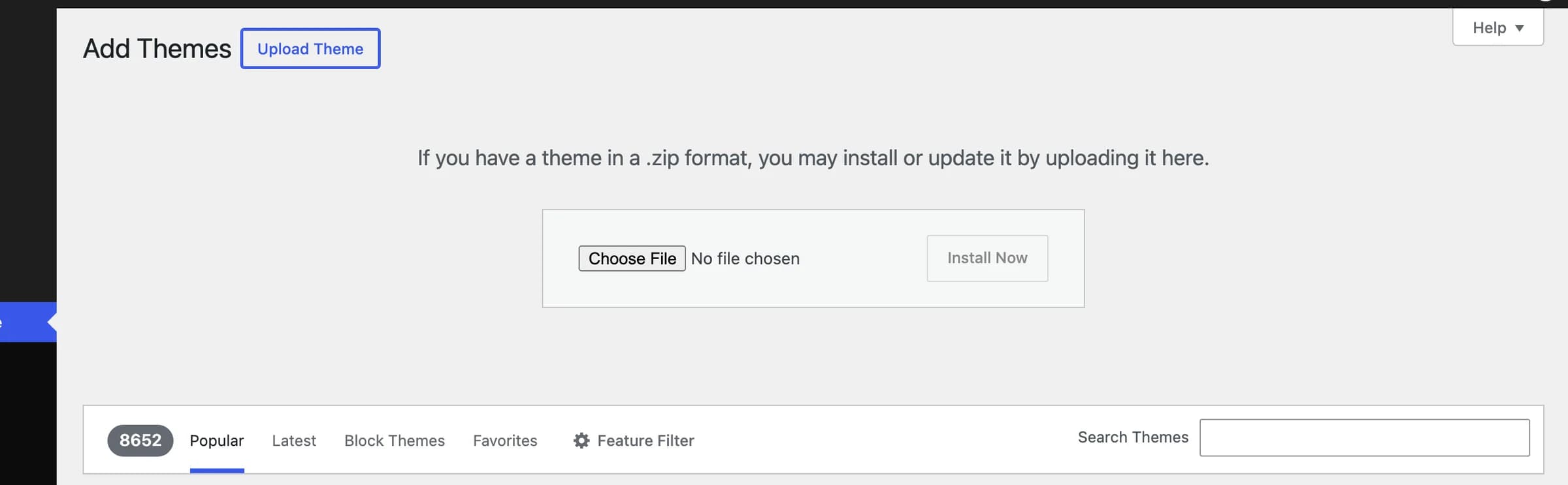 Upload HighendWP.zip here; don't unzip it first.
Activate it
Once the install finishes, click Activate. If an older Highend is already there, click Replace active with uploaded instead.
What happens when you activate

Activating Highend takes you straight to HighendAbout instead of leaving you on the Themes screen. That's WordPress's normal "theme activated" redirect, pointed at Highend's own setup checklist. It doesn't create any pages or menus on its own. Two more things happen quietly in the background: Highend regenerates its dynamic stylesheet (the CSS built from your Theme Options and per-page settings), and it records its own version number, which is what lets it run any one-time update routine the next time a page on your site loads after installing a new version.
None of your content, plugins, or other theme's settings are touched by activating Highend. Next, activate your license, then work through the setup checklist.
Using a child theme
If you're going to modify Highend's PHP, create a child theme rather than editing the theme files directly. An update would overwrite any changes you make to Highend itself. See Child themes.